
If you use Paperless-ngx to manage your documents, you know the pain of opening your dashboard to find a wall of cryptically named files. Scanned receipts, bank statements, insurance documents — they all land with unhelpful filenames like scan_20250301.pdf or document(3).pdf. You end up spending time manually renaming each one just to make your archive searchable.
What if your documents could name themselves?
In this guide, we’ll walk through how to configure Paperless-ngx to work with an n8n automation that reads your documents using AI and assigns them clear, descriptive titles automatically. The AI analyzes the content of each document and generates a meaningful title — turning scan_20250301.pdf into something like 2025-03 Electric Bill - Xcel Energy.
The automation itself is an n8n workflow that you’ll download and import into your own n8n instance. This post focuses on the Paperless-ngx side of things: the tags, workflows, and configuration you’ll need to set up so that everything works together seamlessly.
Prerequisites
Before getting started, make sure you have the following in place:
- A running Paperless-ngx instance. This guide assumes you already have Paperless-ngx installed and working. If you don’t, the official documentation is a great place to start.
- An n8n instance. You’ll need a running n8n installation — either self-hosted or on n8n Cloud — to host the automation workflow. The workflow will be available for download separately.
- An OpenAI API key. The automation uses an OpenAI model to read and title your documents. You can optionally configure an Anthropic API key as a fallback.
- A consume folder for uploading documents. This is a folder from which Paperless-ngx imports new documents. If you use a different method to get documents into Paperless-ngx’s consumption directory, you can adapt accordingly.
- Basic familiarity with the Paperless-ngx web interface. You don’t need to be an expert, but you should know how to log in, navigate the dashboard, and find the settings area.
How It Works: The Big Picture
Before we dive into configuration, let’s understand the overall flow:
- You load a document into Paperless-ngx through its consume folder
- Paperless-ngx picks up the document and begins its consumption (import) process.
- A Paperless-ngx workflow fires when consumption starts. It checks whether the document came from the consume folder, and if so, assigns it two tags: To Review and To Title.
- Once the document is fully added to Paperless-ngx, a second workflow fires. It checks whether the document has the To Title tag. If it does, it sends the document’s API URL and authentication credentials to the n8n webhook.
- The n8n automation receives the webhook call, fetches the document from Paperless-ngx, sends its content to an AI model, updates the document’s title with a descriptive name, and removes the To Title tag.
The To Title tag is the key to the whole system. It acts as a flag that tells the automation “this document needs a title.” This design gives you flexibility: documents uploaded through the consumption folder get titled automatically, but if you upload a document another way (for example, directly through the Paperless-ngx web interface) and don’t want it auto-titled, it simply won’t have the tag, and the automation will ignore it. You can also manually add the To Title tag to any document if you want to trigger the automation on demand.
Step 1: Set Up API Access for the n8n Automation
The n8n automation needs to communicate with your Paperless-ngx instance through its API to fetch document content and write back the AI-generated title. To do this, it needs valid credentials with the right permissions.
We recommend creating a dedicated user. This keeps things clean and secure as you can give it only the permissions the automation actually needs, and if you ever want to revoke access, you can disable the account without affecting any human users.
Creating a Dedicated Automation User
- While logged in as an administrative user, click on Users & Groups in the left sidebar and then click the Add User link.
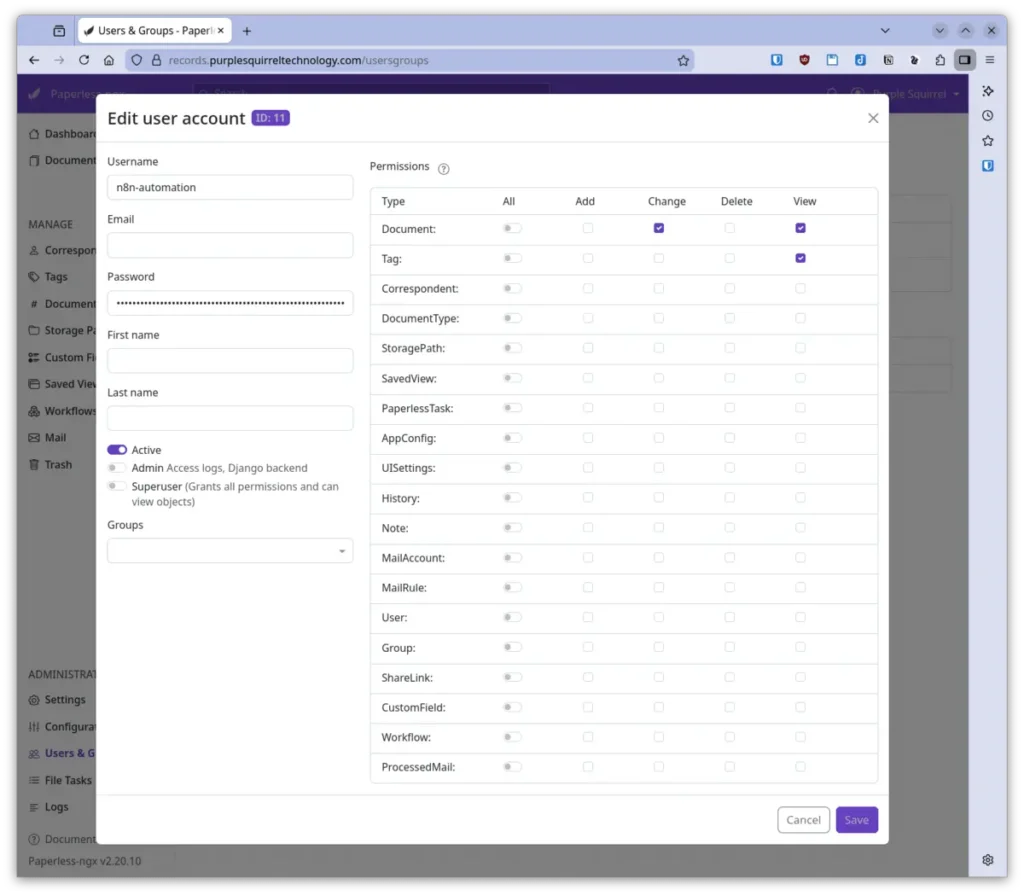
- Give the account a descriptive username like
n8n-automationand set a strong password. You won’t be logging in with this account interactively, so a long randomly generated password is ideal. Save this password somewhere secure as you’ll need it when configuring the n8n automation. - After setting the username and password make the following changes:
- uncheck Admin under Last Name – leaving this checked grants unnecessary permissions
- select Change and View for Document: permissions – allows the n8n automation to get document text and set the new title
- select View for Tag: permissions – allow the n8n automation to check for the To Title tag
- Make sure no other permissions are checked, then save the user.
Using an Existing Account
If you’d rather not create a new user, you can use any existing Paperless-ngx account that has at least the three permissions listed above. Just keep in mind that if the account has broader permissions (like full superuser access), the automation will have more access to your Paperless-ngx instance than it actually needs. This isn’t a problem functionally, but it’s good security practice to follow the principle of least privilege and only grant the access that’s required.
Whichever approach you choose, keep the username and password handy. You’ll need them when configuring the n8n automation so it can authenticate with the Paperless-ngx API.
Step 2: Create the Tags
First, we need to create the two tags that the system relies on. In the Paperless-ngx web interface:
- Navigate to Tags in the left sidebar and click the + button (or go to the Tags management page).
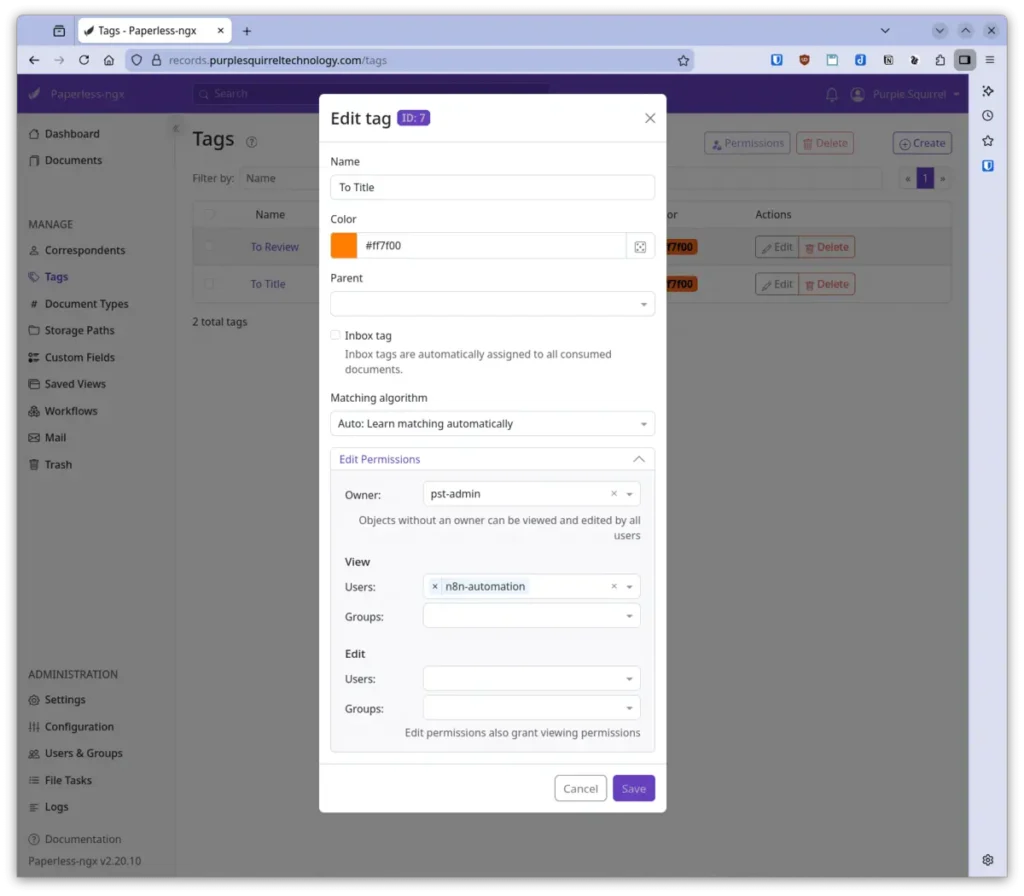
- Create a tag called To Title. This tag signals that a document should be sent to the AI for titling. You can choose any color you like — something eye-catching like orange or red can be helpful so you’ll notice if a document gets stuck with this tag.
- Set the Matching algorithm to None. This prevents Paperless-ngx from assigning the tag automatically.
- To ensure that the n8n automation can see the tag, click on Edit Permissions and select Step 1’s n8n automation user from the Users dropdown under View permissions.
- Save the tag
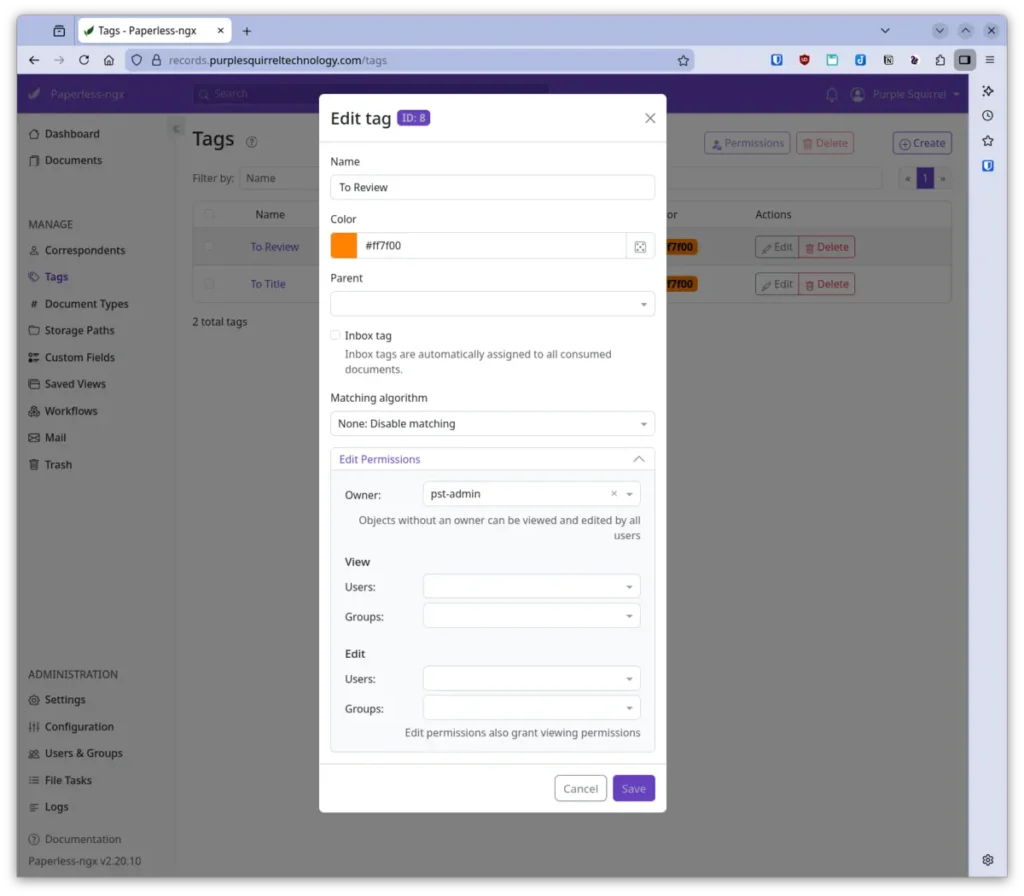
- Create a second tag called To Review. This tag is a general-purpose flag indicating that a document needs your attention. It’s not strictly required by the automation, but it’s useful for your own workflow: when you see this tag, you know the document was auto-imported and you should verify the AI-generated title looks correct. The n8n automation does not need permissions for this tag.
That’s it for tags. These two simple tags are the backbone of the communication between Paperless-ngx and the n8n automation.
Step 3: Create the Consumption Started Workflow
Paperless-ngx has a built-in workflow engine that lets you trigger actions based on events like document consumption or addition. We’ll create the first of two workflows now.
This workflow fires when Paperless-ngx begins consuming (importing) a document. Its job is to check whether the document came from the consume folder and, if so, tag it with To Review and To Title.
Here’s how to set it up:
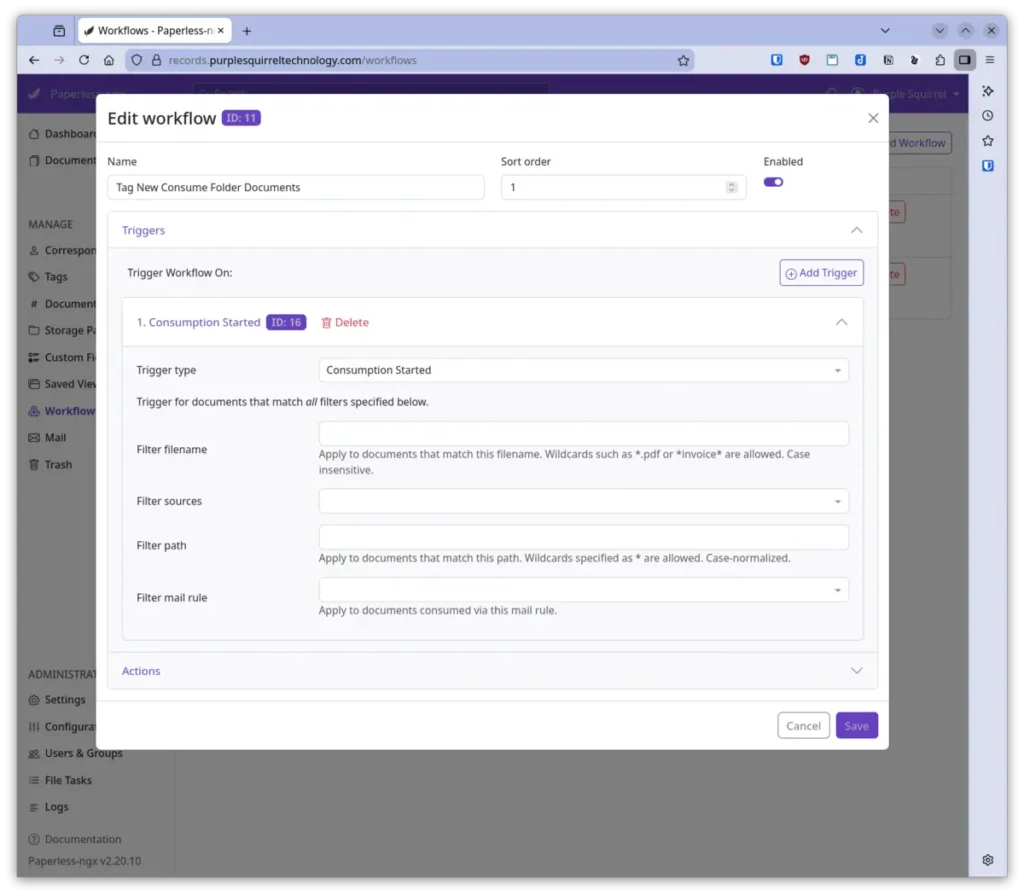
- Click on Workflows in the left side bar and click Add Workflow to create a new workflow.
- Give it a name like Tag New Consume Folder Documents.
- Set Sort Order as appropriate for your Paperless-ngx installation. This sets the execution order for workflows triggered by the same action, so if you have other workflows with the same trigger you’ll want to sort them to avoid conflicts. If you don’t have other workflows you can set this to 1.
- Configure the trigger:
- Set the trigger type to Consumption Started.
- Under the trigger’s filter conditions, configure it to match documents uploaded from your consume directory by selecting Consume Folder from the Filter Sources dropdown. While you can create more sophisticated filters this is enough to get started.
- Configure the actions:
- Open the Actions section and click Add Action.
- Ensure the Action Type is Assignment
- Use the Assign tags dropdown to select the To Title and To Review tags
- To be sure the n8n automation user account can access and edit the document select the n8n automation user from Step 1 in the Users: dropdown under Assign edit permissions
- Save the workflow.
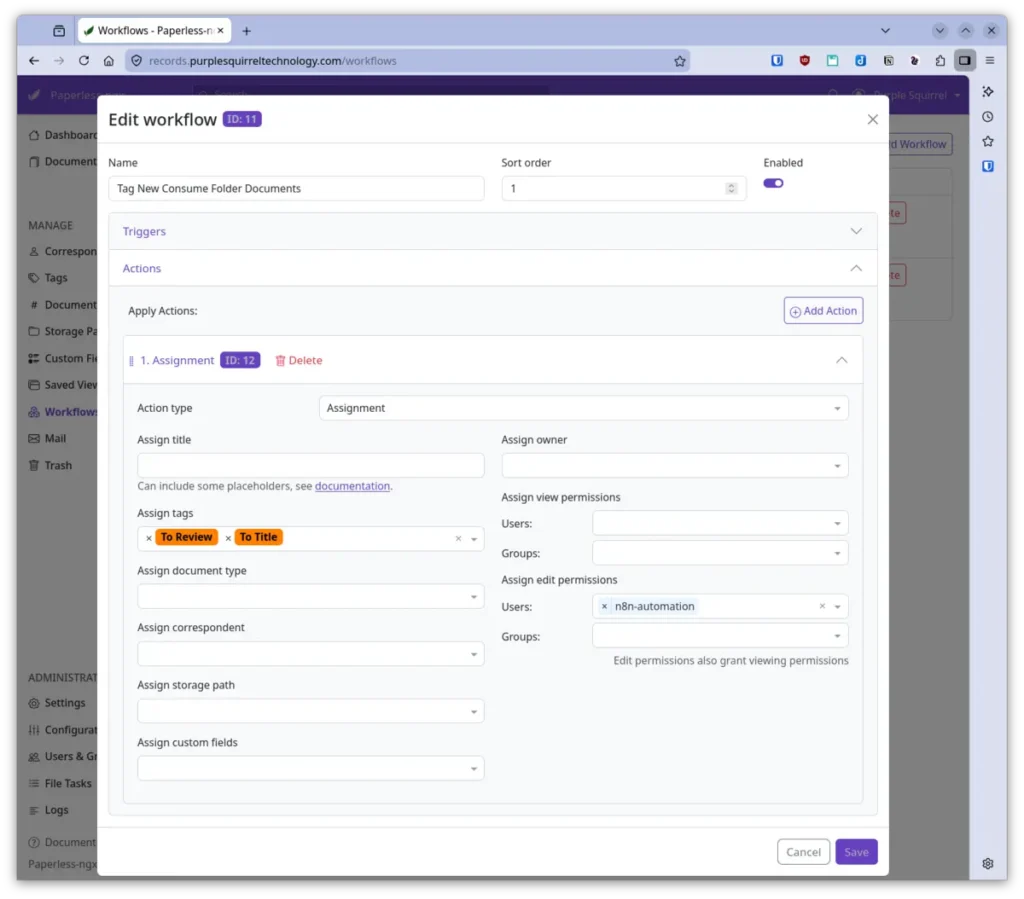
Now, whenever a document lands in your consume folder and Paperless-ngx starts importing it, the document will automatically be tagged with both To Title and To Review.
Why filter by the Consume Folder?
You might be wondering why we don’t just tag every document that gets consumed. The answer is flexibility. You might add documents to Paperless-ngx in other ways, such as through the web interface, via email, or through the API. In those cases, you may not want them auto-titled. By filtering for the consume folder path specifically, you keep the automation scoped to the documents you actually want processed. And if you ever want to auto-title a document from another source, you can always manually add the To Title tag or update the Consumption Started Workflow to filter for other sources.
Step 4: Create the Document Added Workflow
The second workflow fires after a document has been fully added to Paperless-ngx (meaning consumption is complete, OCR has run, and the document is ready). Its job is to check for the To Title tag, call the n8n webhook, and then remove the tag.
- Go back to Settings → Workflows and click Add Workflow.
- Name it something like Send to AI for Titling.
- As with Sort Order in the previous workflow sort this so it doesn’t cause problems for other workflows, if you have them. Otherwise you can set this to 1.
- Configure the trigger:
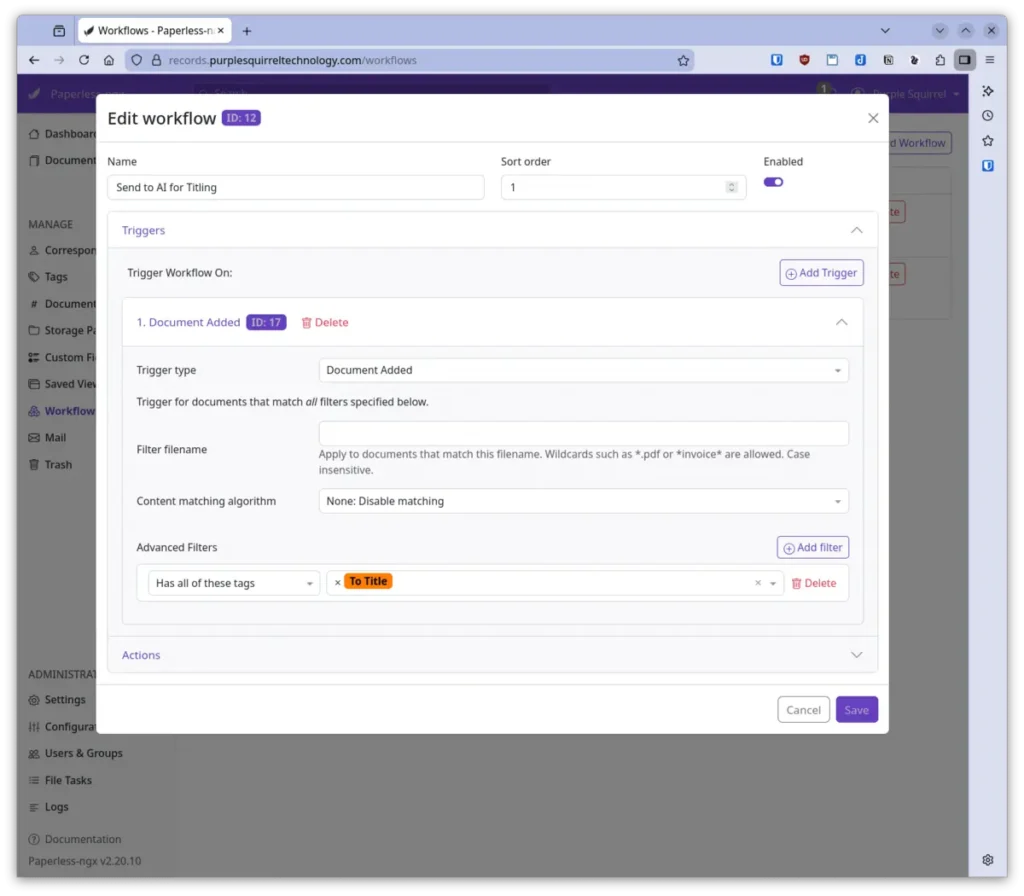
- Set the trigger type to Document Added.
- Under the trigger’s Advanced Filters conditions, click Add filter and set it to Has all of these tags then add the To Title tag in the dropdown.
- Configure the actions:
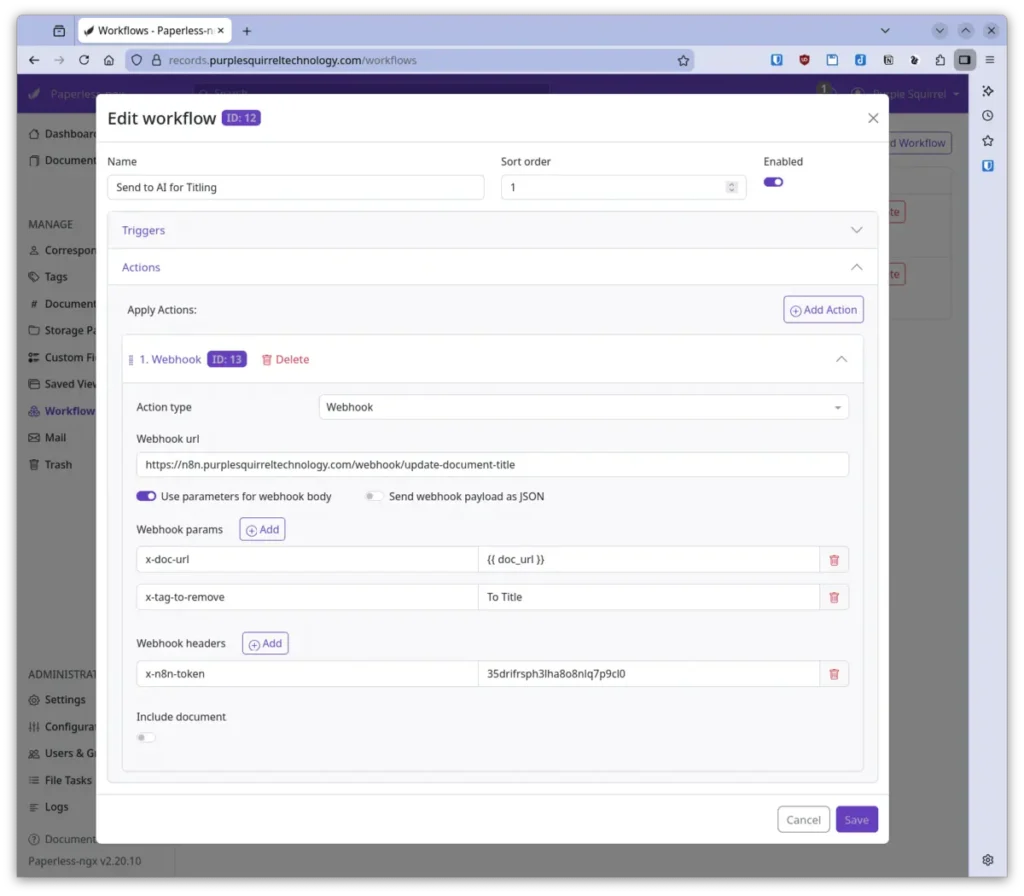
- Add an action of type Webhook.
- Enter the URL of your n8n webhook. This is the URL that n8n generates when you set up the webhook trigger node in the n8n automation. It will look something like
https://your-n8n-instance.com/webhook/your-webhook-id. - Select Use parameters for webhook body and make sure Send webhook payload as JSON is unchecked.
- Add two Webhook params and one Webhook header.
- In the first webhook parameter enter x-doc-url in the first cell and {{ doc_url }} in the second. This passes the document’s API URL to the n8n automation.
- In the second webhook parameter enter x-tag-to-remove in the first cell and the name of the To Title tag you created earlier. Once the new title has been set the n8n automation will use this name to remove the tag from the document.
- In the webhook header enter x-n8n-token in the first cell and a strong password in the second. Make note of the password as you’ll need it to configure the n8n automation.
- Ensure that Include document is not selected.
- Save the workflow.
Why remove the To Title tag?
Removing the To Title tag after the title is set serves two purposes. First, it prevents the automation from being triggered multiple times on the same document. Second, it gives you a visual indicator of status: if you ever see a document sitting in Paperless-ngx with the To Title tag still on it, you know something went wrong and the webhook either wasn’t called or failed. You can then investigate and re-trigger the process if needed.
Step 5: Set Up the n8n Automation
The n8n side of the system is a downloadable automation that you’ll import into your n8n instance. Detailed setup instructions are included with the automation download, but here’s what it does at a high level:
- A Webhook node listens for incoming requests from Paperless-ngx. It’s configured with Header Authentication to ensure only your Paperless-ngx instance can trigger it.
- The n8n automation fetches the document from Paperless-ngx using the API URL passed in the webhook payload.
- The document content is sent to an OpenAI model (with Anthropic as a fallback) along with a prompt that instructs the AI to generate a descriptive title.
- The AI-generated title is written back to Paperless-ngx via the API, updating the document’s title field.
When you set up the n8n automation, you’ll configure the webhook URL and Header Auth credentials — these are the same values you’ll enter in the Paperless-ngx webhook action from Step 4.
Testing & Troubleshooting
Once everything is configured, it’s time to test. Drop a document into your consume folder and watch the process unfold:
- Check that consumption starts. In Paperless-ngx, you should see the document appear shortly after you drop it in the folder. Depending on your setup, this might take a few seconds to a couple of minutes.
- Verify the tags are applied. Once the document appears in your Paperless-ngx dashboard, check that it has both the To Review and To Title tags. If it doesn’t, revisit the first workflow and double-check the folder path filter.
- Confirm the webhook fires. After the document finishes processing (OCR, etc.), the second workflow should trigger. You can check the n8n execution log to see if the webhook was received. If nothing shows up, verify the webhook URL in the Paperless-ngx workflow action, and make sure your n8n instance is reachable from the Paperless-ngx server.
- Check the title. Once the n8n automation completes, go back to the document in Paperless-ngx. It should now have a descriptive AI-generated title. The To Title tag should be gone, and only To Review should remain.
Common Issues
- The webhook isn’t firing. Confirm the second workflow’s trigger is set to Document Added (not Consumption Started) and that the tag filter matches the name of your To Title tag exactly. Also verify that the document actually has the To Title tag by the time the Document Added event fires.
- n8n returns an authentication error. Double-check that the Header Auth credentials in the Paperless-ngx webhook action match what you’ve configured in the n8n webhook node. Usernames and passwords are case-sensitive.
- The AI returns a poor title. This can happen with unusual or low-quality documents. The AI prompt in the n8n automation can be adjusted to better suit your document types. You can also manually edit the title in Paperless-ngx and remove the To Review tag once you’re satisfied.
- Network connectivity issues. If Paperless-ngx and n8n are on different networks or behind firewalls, make sure the necessary ports are open and the webhook URL is accessible from the Paperless-ngx server.
Conclusion
With this setup, your Paperless-ngx instance will automatically send new documents to an AI model for intelligent titling. The two-workflow approach with the To Title tag gives you a clean, flexible system: documents from your consume folder get processed automatically, while you retain full control over which documents the AI touches.
From here, you could extend the automation to do even more — automatically assign correspondents based on document content, apply tags by category, extract dates, or route documents to specific folders. The combination of Paperless-ngx’s workflow engine and n8n’s automation capabilities opens up a lot of possibilities for building a truly hands-off document management system.